
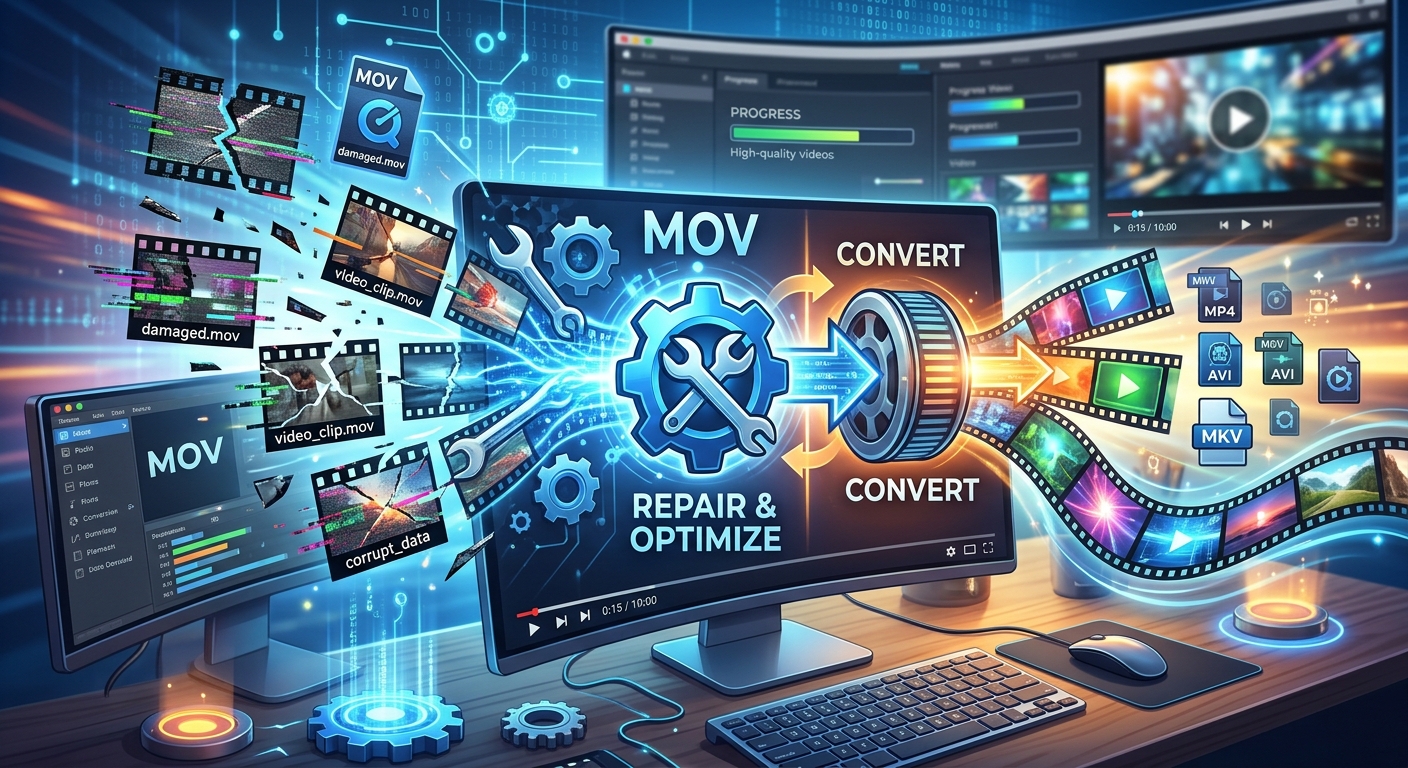
Your video is right there, but pressing play gives you a black screen, an error message, or silence. That can feel awful when the clip holds a client shoot, a family celebration, or hours of work. An unplayable MOV file does not always mean the footage is lost. Sometimes the file needs repair. Sometimes your device simply cannot read the video inside it. Knowing the difference helps you choose a useful fix and protect the original recording.
Your Footage Rescue Checklist
- Keep an untouched copy before attempting repairs or conversions.
- Check whether the problem affects one file or several recordings.
- Repair damaged files before trying to convert them.
- Choose output settings that match the device or app receiving the video.
- Check the exported picture, sound, duration, and playback before sharing.
Find Out Whether Your MOV File Needs Repair
MOV is a container format. Think of it as a package holding video, audio, timing information, and sometimes other details. The video and audio inside that package use codecs, which are methods for storing and reading those streams.
A device might recognize the MOV package yet lack support for its video codec. In that case, the recording may be healthy even though one app refuses to open it. Converting a readable recording into a more widely supported format can solve that compatibility problem.
Corruption is different. A recording interrupted by a dead battery may be missing information needed for playback. A failed transfer may leave you with only part of the original file. Conversion cannot recreate footage that was never recorded or copied.
Start with a few checks before choosing a tool:
- Compare the file size with other clips of a similar length from the same camera. A zero-byte file contains no video data.
- Try opening a copy in another trusted video player or editing app you already have.
- Check whether the recording plays on the camera or phone that created it.
- If the source remains readable, copy the clip again to a different folder and compare the results.
- Write down the symptoms, including freezing, missing sound, an incorrect duration, or a failure to open.
These checks provide clues rather than a final diagnosis. If one player works and another does not, compatibility becomes a likely explanation. If several apps fail at the same point, damage or an incomplete transfer deserves closer attention.
Protect the Recording Before You Change Anything
Make a working copy and leave the original untouched. Store your repaired and converted versions under separate names. Simple names such as “interview-original.mov,” “interview-repaired.mov,” and “interview-sharing.mp4” make the process easier to track.
Keep those copies on a healthy drive with enough free space. A conversion may need room for both temporary data and the finished export. Do not delete the source just because a new file appears in the destination folder.
If an SD card disconnects, reports errors, or repeatedly fails during copying, stop recording onto it. Avoid formatting it or accepting a repair prompt before considering recovery. Writing new data can overwrite footage that might still be recoverable.
Recovery and video repair address different problems. Recovery attempts to retrieve files from storage. Video repair attempts to make retrieved video data usable. When the storage device itself is failing, repeated conversion attempts do not address the underlying problem.
Repair Damaged MOV Files Before Converting Them
A converter normally needs to read the source before it can create a useful output. If the recording has damaged timing or missing structural information, conversion may fail, stop early, or export only the readable portion.
This is where the free browser-based MOV repair service offered here fits naturally. After preserving your original, try repairing a working copy when the symptoms suggest file damage. Keep the source available so you can compare it with any repaired result.
Follow the tool’s current instructions and check what it reports. Some repair methods request a healthy sample recorded with the same device and settings. If requested, use a separate, undamaged clip that matches the affected recording as closely as possible.
Keep expectations realistic. A repair may restore access to footage that exists inside the file. It cannot guarantee a complete recording, recreate overwritten data, or recover every frame after a failed recording.
Once a repaired version opens, watch it before moving into conversion. A successful download alone does not establish that the video is complete.
Convert Readable Footage for Its Next Destination
Conversion makes sense when your MOV plays correctly but a messaging app, website, television, or editing program rejects it. It can also help reduce file size for sharing. Decide where the output will go before choosing settings.
For everyday playback, MP4 containing H.264 video and AAC audio is a common compatibility choice. MP4 describes the container, while H.264 and AAC describe the streams inside it. An MP4 using a different codec may still fail on an older device.
If you want a browser-based option, you can convert MOV video files after confirming that your source is readable. Keep the original MOV and treat the converted file as a separate version for a particular purpose.
Changing “.mov” to “.mp4” in a filename does not perform conversion. It changes the label without changing the contents. Use a tool that creates a valid output file.
Choose Settings That Preserve Useful Detail
Keep the original resolution unless you need a smaller delivery file. A 4K recording might be reduced to 1080p for convenient sharing. Increasing a low-resolution recording to 4K does not restore missing detail.
Keep the source frame rate when possible. Changing it can alter motion or cause repeated or dropped frames. Preserve the aspect ratio too, so faces and objects retain their correct proportions.
Higher compression can reduce file size, but it may soften detail or produce visible blocks during movement. Start with a quality-focused setting and inspect the result. If the file remains too large, make another version directly from the original or verified repaired source.
Keep Editing and Sharing Copies Separate
A small sharing file may be convenient for sending to a friend, but less suitable for future editing. Repeated exports using lossy compression can gradually reduce quality.
Keep your best available source for future projects. Create delivery copies from it as needed. This also helps preserve details that a converter might omit, including extra audio tracks or recording metadata.
Check Privacy Before Selecting an Online Tool
A browser interface does not tell you where processing happens. Some services process files on your device. Others transfer them to a server. Check the service’s current privacy information before selecting sensitive footage.
Look for a clear explanation of uploads, storage, retention, and deletion. If that information is missing or unclear, choose a method that meets your privacy needs. Do not assume that closing the browser deletes an uploaded recording.
For client work, follow any agreement covering third-party services. For personal footage, consider faces, conversations, addresses, and documents visible in the frame. A trusted offline tool may be more suitable when the recording must remain on your device.
Validate the Output Before You Share or Delete
A file that opens still needs checking. A repaired clip may stop early. A converted clip may have missing audio, incorrect rotation, or a picture that looks different from the original.
Use this final inspection before accepting the result:
- Compare the duration with the original recording or your best available reference.
- Watch the beginning, middle, and end, plus any section that previously failed.
- Listen for missing sound, distortion, and speech that falls out of sync.
- Check orientation, proportions, color, sharpness, and motion.
- Open the output on the actual device or app that will receive it.
For valuable footage, watch the entire result. Brief spot checks can miss a damaged section between the points you inspected. If you need multiple audio tracks, captions, or metadata, verify those separately.
Keep at least two copies of irreplaceable footage on separate storage devices or services. Verify that the backup opens before clearing a camera card. A second folder on the same drive will not protect against that drive failing.
Give Your Recording a Reliable Next Step
Start by protecting what you have. Check whether the MOV is damaged or merely unsupported, then choose repair or conversion to match the problem. Repair can help make existing footage readable. Conversion can prepare readable footage for another app or device.
The task is finished when the result plays correctly, contains the expected picture and sound, and has a verified backup. Keeping the original gives you room to try another approach without losing your best starting point.